*Note: Fields that are marked with a red checkmark ( ) are required fields.
- Click on the New Trip Request tab.

You will be redirected to a new page, select One time Trip or Recurring Trip based on your requirement.
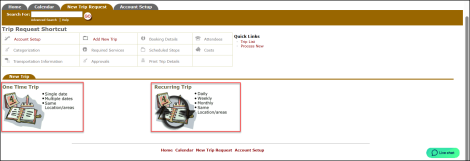
One Time Trip:
These trips are scheduled for a specific date or set of dates, but does not repeat on a regular basis.
Recurring Trip:
These are the trips that happen repeatedly according to a regular schedule. This can be set to repeat daily, weekly, or monthly and for the same location/areas.
Click on the trip type you want to request and proceed with the steps below.
For One Time Trips:
Follow the below given steps to request one time trips:
Booked By
- The Booked By section will be filled in with your contact information.
Booking Details
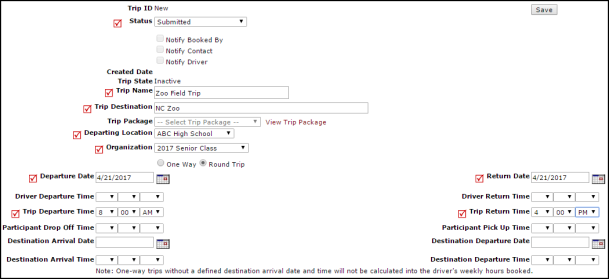
- The Status will default to Submitted for a new request. You can enter a request in the Approved status by selecting Approved from the drop down box. This will check the Notify Booked By, Notify Contact, and Notify Driver boxes. If you do not want these email notifications to go out, uncheck the boxes.
- Enter the Trip Name and the Trip Destination.
- If you are entering a frequently taken trip, you may be able to select it from the Trip Package drop down list.
- Select your Departing Location and the Organization taking the trip.
- Choose if your trip is One Way or Round Trip.
- Select your trip Departure Date, Departure Times, Return Date, and Return Times.
Trip Contact
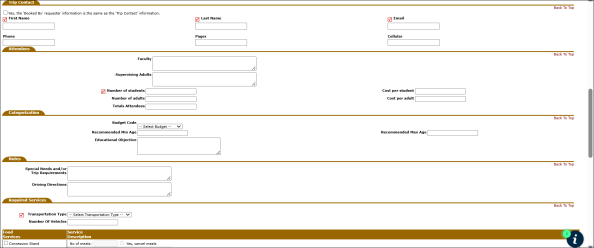
- If you are the Trip Contact, check the box to populate the fields with your contact information.
- If you are not the Trip Contact, enter their information in the fields.
Attendees
- Enter the Number of Students attending the trip and any other necessary information.
Categorization
- Enter the Budget Code if needed, along with any additional information.
Notes
- Enter Special Needs and/or Trip Requirements and include Driving Directions if needed.
Required Service
- Select the Transportation Type of the vehicle needed for your trip from the drop down list and enter the Number Of Vehicles needed.
- If available, select the Food, Maintenance, and IT Services needed for your trip.
Approval
- Click Save to send the request to the next user in the automatic routing process.
- If you need to manually route this request to another user, select their name in the Route To Next drop down and click Save.
- If you are the final user in the approval process, check the box next to Activate Trip Request? and then click Save.
For Recurring Trips:
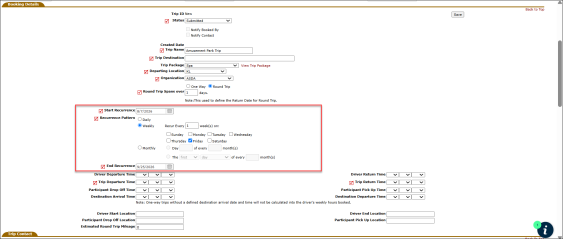
All the sections in the recurring trip requests are same as the one-time trip requests except the Booking Details section. Check the below steps to fill in the Booking Details for a recurring trip request.
Booking Details
-
The Status will default to Submitted for a new recurring request. You can enter a request in the Approved status by selecting Approved from the drop-down menu. This will check the Notify Booked By, Notify Contact, and Notify Driver boxes. If you do not want these email notifications sent, simply uncheck the boxes.
-
Enter the Trip Name and the Trip Destination.
-
If this is a frequently taken trip, you may select it from the Trip Package drop-down list.
-
Select your Departing Location and the Organization taking the trip.
-
Choose if your trip is One Way or Round Trip.
-
Set the recurrence details for your trip:
-
Start Recurrence: Choose the date your recurring trips should start.
-
Recurrence Pattern:
-
Select either Daily, Weekly, or Monthly recurrence.
-
For Weekly: Specify how many weeks between each trip, and select which days of the week the trip should repeat.
-
For Monthly: Specify which day or week of the month the trip occurs.
-
-
End Recurrence: Choose the date when your recurring trips should stop.
-
-
Set your Departure Date(s), Departure Times, Return Date(s), and Return Times. For recurring trips, these will apply to each occurrence based on your selected pattern.
-
Enter Driver and Participant details, including all timing and location information.
-
Complete any additional required trip fields and Save your request.
The next steps are same as one-time trip request.
Note: The driver’s details like name under the Transportation section is not same as that of one-time trip, because on generated trip from recurring, different driver can be assigned to each trip differently.
Approved Flow for Recurring Trips
Whenever a submitted recurring trip request is approved, it follows the following approval flow:
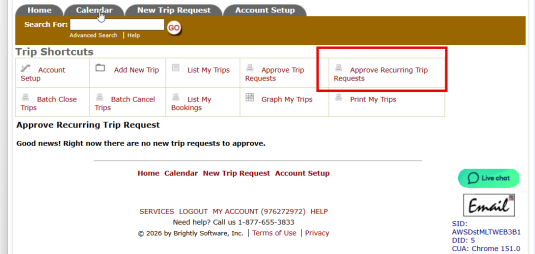
To approve a recurring trip request, click the Approve Recurring Trip Requests link from the Trip Shortcuts opened from Quick Links.
-
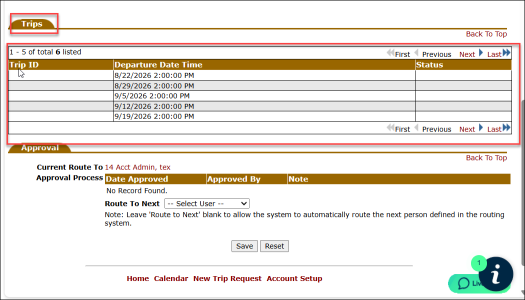
For a recurring trip request, the trips section will show Projected trips with Date and Time and without Trip ID.
-
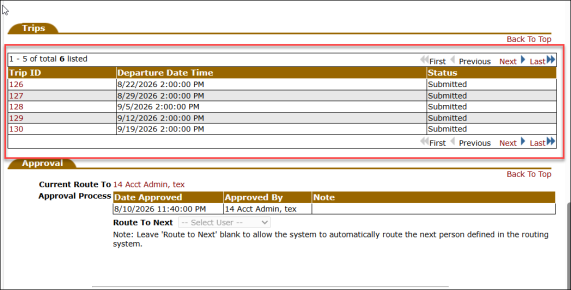
Once the recurring trip status is updated to Approved, all the relevant fields including recurring details for trip become read only.
-
The Trips also section show the generated trips with Trip ID.
-
To approve the recurring trips, you will need to go through each generated trips and enter the driver detail and other info. This flow will be same as One Time trip where you add details to Approve the trips.
